


Peter K. at Clay left a review on our LinkedIn product page that we keep coming back to: "LOVE the platform and especially that you can tag to LinkedIn profiles in draft. No other scheduler does this I don't think." It's a strange thing to be anyone's favorite feature. Tagging a person is a free button inside LinkedIn's own composer, meaning everyone with a login already has it.
It's a favorite because of what its absence forces: a human being logging into someone else's LinkedIn account to press that button.
That's the real ceiling on how many LinkedIn accounts your team can manage. Not seat count, not browser tricks, not proxies. If your scheduler only covers the common post types, a meaningful slice of your calendar still ends up publishing by hand from credentials nobody should be holding.
So the fix for multiple LinkedIn account management is feature coverage first and access management second.
Count How Many Times a Week Someone Logs In as a Client
The operating metric for managing multiple LinkedIn accounts is the number of times per week a teammate signs into a client's profile to publish something. Seat pricing, workspace limits, how many tabs you can keep open: all downstream of that one number. Count it for a week. You'll have a more honest picture of your capacity than any tool comparison will give you.
Agencies managing 5+ LinkedIn accounts manually spend 3 to 5 hours per day per account manager on switching logins, relogging, and tracking replies (manual account switching, Bearconnect, 2025). That's an account manager's entire afternoon, every day, spent on session management.
And this is mainstream practice, not an edge case. 64% of businesses now use multi-account strategies to scale LinkedIn (Humex, 2025). The category has had plenty of time to solve this. It mostly hasn't.
The Four Post Types That Force a Session Switch
Four post types account for nearly every manual login in an agency workflow. None of them are exotic.
1. Tagging a Personal Profile
Almost every scheduler supports company page tags and stops there. But B2B ghostwriting runs on personal tags: the client thanking a customer, tagging a co-founder, crediting the person whose data they're citing.
Peter's review is evidence the gap is category-wide. It's the most common reason a drafted post gets published by hand.
2. PDF Carousels
Carousels are one of the highest-engaging formats on LinkedIn and one of the least supported in scheduling tools, because the integration takes real engineering work. So the carousel your designer finished on Tuesday gets uploaded manually on Wednesday, from the client's session.
3. Polls
Polls are a native LinkedIn format with a dedicated composer flow. Most schedulers treat them as out of scope. Any client running a weekly poll generates a weekly login.
4. Quote Reposts
Quote reposting a customer's post with the client's own commentary is standard executive-brand practice. Scheduling it by URL is something we built and haven't seen elsewhere. On most stacks, this is another hand-published post.
One adjacent tell worth naming: if your team copy-pastes Unicode characters from a third-party site to get bold text into a post, that's the same coverage gap showing up somewhere else. Here's how the calendar breaks down:
Most of these rows force a session switch. That's the chunk of the calendar nobody prices when they buy on seat cost. If you're building an executive program on top of this, our breakdown of scheduling tools for executives goes deeper on which gaps matter most for founder accounts.
What Each Manual Login Costs You
Each login carries four costs. The hours are the least of them.
The first is shared credentials.
To log in as a client you need their password, so it lives in a folder in your password manager, so a client offboarding becomes a security incident rather than a checklist item. Every teammate who ever had folder access still knows a password that may not have rotated.
"I think that the other thing that I always like to just flag with the sharing passwords is technically for a lot of platforms like LinkedIn, it's also a terms of service violation." (Jeffrey Zhao, Co-Founder at Ordinal)
Watch the full interview: Why Copy-Pasting Posts Across Platforms Is Killing Your Content Strategy
Second is publishing to the wrong account.
Someone leaves a browser profile open, drafts in the wrong session, and a client's thought-leadership post goes out under another client's name. That's a phone call you make once and never forget.
Third is the missing audit trail.
When a client asks who approved the post that went out Thursday, native LinkedIn has no answer for you. Neither does the Slack DM where the approved draft was pasted at 11pm. Which brings up the fourth cost: version control. If the latest approved draft lives in a DM, it's findable by exactly one person, and that person is on vacation.
Then add the coordination tax on top.
Those 3 to 5 hours per day per account manager aren't billable, and they scale linearly with client count while your retainers don't. We compared how different platforms handle this in our agency tooling comparison.
Chrome Profiles and Incognito Manage the Symptom
Every piece of standard advice on this topic addresses switching friction and leaves the login count untouched.
LinkedIn's terms allow one personal profile per person, so a client's account is always someone else's identity rather than a second account of yours. Separate browser profiles per client make switching faster but still put a teammate inside the client's session. Incognito windows do the same thing with worse ergonomics and no saved state. Mobile app account switching caps out at a handful of profiles and makes carousels close to unusable. The generic "just use a scheduler" advice is right as far as it goes, but a scheduler that can't publish a tagged post hands the post back to you.
None of these reduce the number of logins. They make each one slightly less annoying.
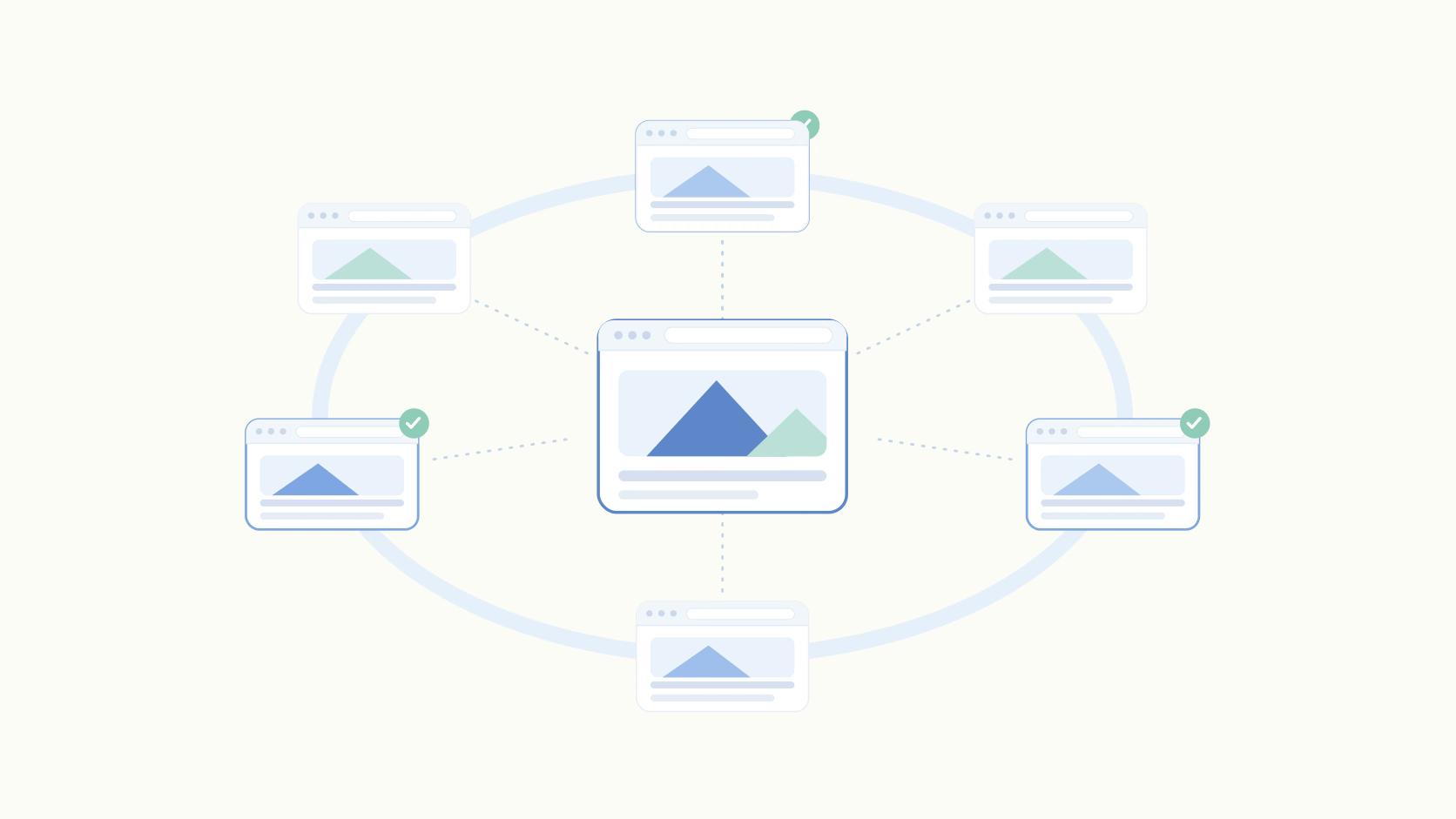
Connect Accounts by Permission Instead
The login count reaches zero when accounts are connected through OAuth-scoped authorization instead of credentials, and every post type on your calendar can publish through that connection.
Both halves are required. Permission-based access that still leaves common post types unsupported sends you back to the password folder every week.
OAuth means the client authorizes your workspace to publish on their behalf without a password changing hands. Offboarding becomes a disconnect rather than a rotation. And per-account permissions mean the client who logs in to approve their own drafts sees their calendar and nothing else, which is the objection that kills most shared-workspace setups.
That fixes access.
Feature coverage fixes the rest: personal profile tagging (including removing the last name so the tag reads naturally), PDF carousels, polls, quote reposts by pasted URL, and native bold and italic. If LinkedIn's API supports it, we build it. That's the whole reason Peter's review exists. You can see the full set on Ordinal for LinkedIn.
Approvals are the other half of the coordination tax. Blocking approvals with Slack notifications, inline comments, and version history with diffs give the approved draft exactly one location, so nobody searches a DM thread for final copy. And when the retainer conversation comes, you can export LinkedIn analytics per account rather than screenshotting dashboards.
Account count matters in the first place because reach is additive across profiles:
"Every single exec is a new distribution point inside of the LinkedIn network to help saturate it with content." – Jeffrey Zhao
That's fine when the marginal account costs you a connection flow. It's a problem when the marginal account costs you another password and four manual logins a week.
If You're Also Running Outreach From Those Accounts
Outreach has a different constraint. Publishing is limited per post type. Outreach is limited per account. Only one of those gets solved by adding accounts.
HeyReach analyzed 96,051 LinkedIn outreach campaigns and found that campaigns using 6–20 sender accounts hit the highest median reply rate at 25.00%, versus 22.22% for single-sender campaigns and 21.94% for pools of 21–50 senders (sender pool data, HeyReach, 2025).
They sell outreach software, so read it as vendor data. But the shape is plausible: a sender pool spreads volume across accounts, and past a couple dozen senders you're adding coordination without adding deliverability.
Volume per account has its own ceiling. Konnector puts 20 to 40 connection requests per day as a safer threshold for accounts older than six months, with new accounts starting at 15 to 20 per day in month one (safe connection limits, Konnector, 2025). Adding accounts raises your total outreach capacity. It does nothing for the carousel sitting in your content folder.
The Setup, in Order
Do this over one week, in this sequence:
- Log every instance of someone opening a client's LinkedIn session. Note the date, the account, and the reason.
- Sort the log by reason. You'll find personal tags, carousels, polls, and quote reposts covering most of it.
- Test your current tool against those four post types specifically. Draft one of each and see which ones you can schedule.
- Move every account to an OAuth connection, then delete the shared credentials from your password manager. Not archive: delete.
- Give each client an approval view scoped to their own account so sign-off happens where the draft lives instead of in Slack.
The number you're driving to is zero logins per week, and it's reachable this quarter. Start with step one on Monday. You can't fix a number you've never counted.
Frequently Asked Questions
Can You Have More Than One LinkedIn Account?
LinkedIn's terms allow one personal profile per person, but agencies and companies routinely manage multiple LinkedIn accounts belonging to different people: clients, executives, employees. Managing several real people's accounts on their behalf is fine. Creating duplicate profiles for one person violates LinkedIn's policy.
How Do Agencies Manage Multiple LinkedIn Accounts Without Sharing Passwords?
Connect accounts through OAuth rather than logging in with a password. Tools like Ordinal for LinkedIn let a client authorize access once, and the agency publishes, schedules, and reports without ever holding a credential.
Is It Against LinkedIn's Terms of Service to Manage Multiple LinkedIn Accounts?
Managing other people's LinkedIn accounts on their behalf, with permission, doesn't violate LinkedIn's terms. What's prohibited is one person operating multiple personal profiles for themselves, or accessing accounts through scraping and unauthorized automation rather than LinkedIn's own API.
How Many LinkedIn Accounts Can One Person Manage at Once?
There's no hard cap, but the real ceiling is how often a post forces a manual login. Agencies managing five or more accounts without proper tooling spend 3 to 5 hours per day per account manager on switching and relogging, according to Bearconnect's analysis.
Can You Schedule Posts That Tag Personal LinkedIn Profiles?
Most schedulers only support tagging company pages, which is why personal-profile tags are one of the most common reasons someone opens LinkedIn's native composer. Ordinal supports personal profile tagging directly in the editor, including the option to drop the last name for a more organic feel.
Do You Need Separate Browser Profiles or Proxies to Manage Multiple LinkedIn Accounts?
No, and they don't solve the underlying problem. Chrome profiles and incognito windows organize which credentials you're using without reducing how often a person has to log in as the client.
How Many Connection Requests per Day Is Safe per LinkedIn Account?
For accounts older than six months, 20 to 40 connection requests per day is the commonly cited safe range, according to Konnector's guidance. New accounts in their first month should stay closer to 15 to 20 per day.
How Do Clients Approve LinkedIn Posts Without Seeing Other Clients' Content?
Per-account workspaces solve this: each client gets a scoped view where they only see their own drafts, comments, and approval queue. Blocking approvals with Slack notifications and version history mean the client signs off in one place.
Related Posts
Looking to learn more? The below posts may be helpful for you to learn more about social media and content marketing.