

You publish content on LinkedIn and watch the impressions climb, but those numbers don't tell you much without context. Is 3,000 impressions strong for your audience size? Are you reaching the right people with your message? Whether you're managing a personal profile, running a company page, or overseeing multiple accounts as part of a broader social media strategy, understanding impression data helps you refine your content approach and maximize engagement.
This guide explains how LinkedIn defines impressions, where to find them in your analytics, what they actually measure, and how the platform's algorithm affects your visibility. You'll also learn which metrics matter more when evaluating content performance and how to use impression data to improve your LinkedIn strategy.
TLDR:
- LinkedIn impressions count every time your content displays on a screen, including feeds, profiles, and reposts
- Reposts multiply your impression count as each repost view adds to your original post's total
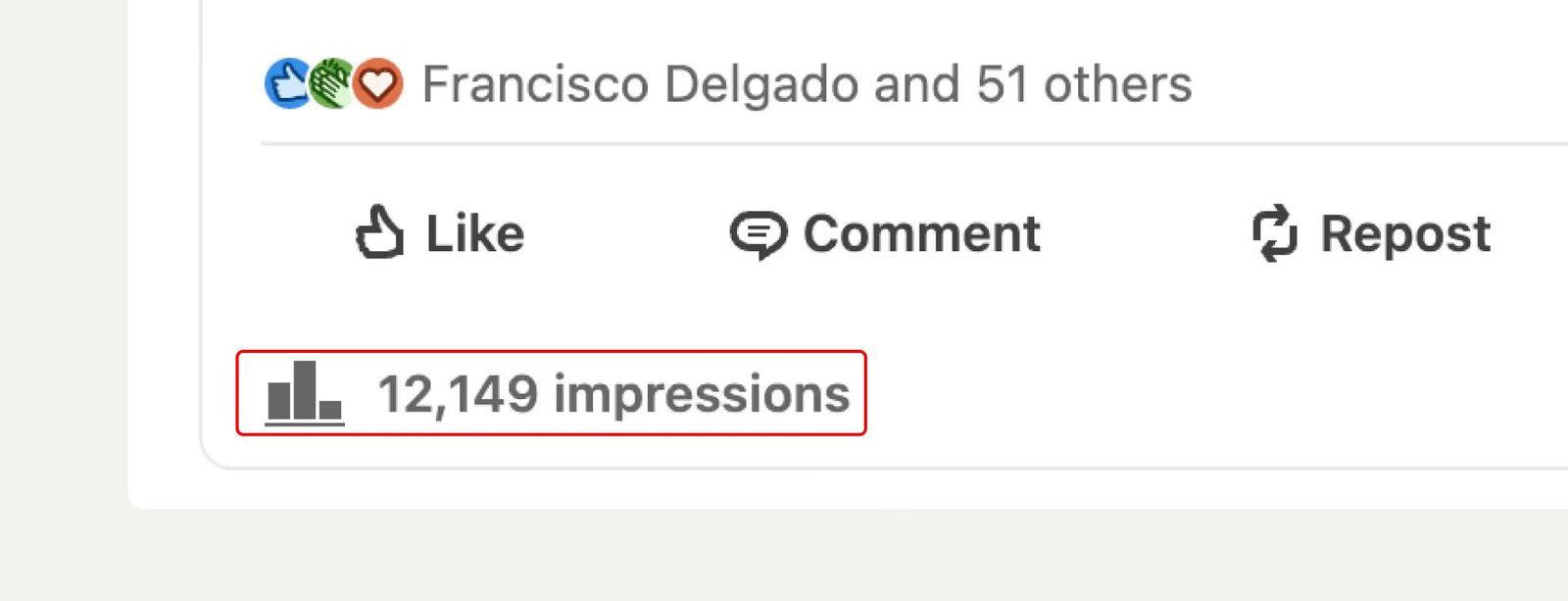
- You can view impressions in the bottom left corner of any post you own or manage
- Ordinal helps teams track impressions across multiple accounts and automate engagement to boost visibility
- Higher impressions signal algorithm amplification and broader content distribution beyond your network
What are Impressions on LinkedIn and How are they Counted?
LinkedIn impressions measure how many times your content appears on someone's screen, regardless of whether they interact with it. This includes views in the main feed, search results, notifications, and any other place where LinkedIn displays your post. Every time your content loads counts as one impression - if the same person scrolls past your post three times throughout the day, that registers as three separate impressions.
This differs from reach, which counts unique individuals who saw your content at least once. While reach measures the number of different users, impressions count every single view. For example, if someone sees your post in their feed in the morning and encounters it again later when a connection comments on it, that counts as two impressions from one person.
Think of impressions as your content's exposure level. A post with 5,000 impressions appeared on screens 5,000 times, but that doesn't tell you how many different people saw it or what they did afterward. High impression counts suggest that LinkedIn's algorithm is amplifying your content, while lower numbers may indicate that your post isn't gaining traction beyond your immediate network.
How LinkedIn Counts Impressions
The platform doesn't require any minimum viewing time - as long as your post loads on someone's device, it registers in your impression count.
LinkedIn tracks impressions across multiple placements throughout its ecosystem. Your content can generate impressions when it appears in:
- The main feed – When users scroll through their home feed and your post appears
- Profile visits – When someone views your profile or company page and sees your pinned or recent posts
- Search results – When your content surfaces in LinkedIn's search functionality
- Notifications – When users receive alerts about activity on your post
- Hashtag pages – When your post appears in results for hashtags you've used
- Reposts and shares – When others share your content to their networks
Whether you're building your personal brand, job searching, or running B2B campaigns, understanding these placements helps you interpret your performance data more accurately. When you see impression spikes, you can investigate whether they're coming from the algorithm distributing your content more widely in the feed, increased profile traffic, or engagement-driven visibility from comments and shares.
For anyone tracking LinkedIn content performance, impressions provide the foundation for understanding visibility before measuring deeper engagement like clicks, comments, or shares.
Types of LinkedIn Impressions
LinkedIn breaks down impressions into three distinct categories, each revealing different aspects of your content's distribution.
- Organic impressions – Unpaid distribution through LinkedIn's algorithm and your existing network. This includes when your post appears in a follower's feed naturally or when someone visits your profile and sees your content. If you have 2,000 followers and your post gets 3,500 organic impressions, the algorithm is likely showing your content beyond just your immediate connections.
- Paid impressions – Views generated from sponsored content or ads. Any time you pay LinkedIn to promote a post, those views register as paid impressions. These give you control over targeting specific audiences but come at a cost per impression.
- Viral impressions – Views from people outside your network through shares, reposts, or algorithmic distribution to non-followers. When someone shares your post with their network, any resulting views count as viral. High viral impression counts indicate your content resonated enough that others amplified it for you.
Do LinkedIn reposts count as impressions?
Yes, impressions from reposts on LinkedIn are included in your original post's total impression count. When someone reposts your content to their network, every time that reposted version appears on someone's screen, it adds to your overall impression metric.
This is one of the most powerful aspects of LinkedIn's impression tracking because it means your content's visibility can extend far beyond your immediate network. When a connection with a large following reposts your content, you benefit from the impressions generated in their audience - even if those viewers aren't directly connected to you.
Here's how it works in practice: Let's say you publish a post that generates 1,000 impressions from your own network. Then, a colleague with 5,000 followers reposts it, and that repost generates another 2,000 impressions. Your original post's impression count will now show 3,000 total impressions, combining both the original views and the repost views.
This multiplier effect is why encouraging reposts is such an effective strategy for expanding your reach on LinkedIn. Each repost essentially gives your content a second (or third, or fourth) life in the algorithm, exposing it to new audiences and potentially triggering additional engagement.
For teams managing executive or employee advocacy programs, this becomes especially valuable. When multiple team members repost company content or thought leadership pieces from executives, the cumulative impression count can grow exponentially. For individual professionals building their personal brand, this repost effect means each share from a colleague or connection can significantly extend your content's lifespan and visibility.
Understanding that reposts contribute to your impression count also helps explain why some posts suddenly see dramatic spikes in impressions hours or even days after publication. Often, this happens when someone with significant reach discovers and reposts your content, introducing it to an entirely new audience segment.
Impressions vs Members Reached on LinkedIn
The key difference comes down to counting methods. Impressions track every single time your content loads on a screen, while members reached counts only unique individuals who saw it at least once. A post with 4,000 impressions and 2,500 members reached means those 2,500 people saw your content an average of 1.6 times each.
This explains why your impression count always equals or exceeds your members reached number. Higher impression-to-reach ratios suggest your content appeared multiple times in feeds, either through algorithmic reshowing or people revisiting your profile.
For measuring audience size, members reached gives you a clearer picture. If you're trying to determine how many professionals you've exposed to your message, members reached is the number that matters. Impressions tell you about content stickiness and algorithmic favor. Tracking both metrics together helps you understand not just how many people you reached, but how persistently your content appeared in the LinkedIn ecosystem.
The Relationship Between Impressions and Engagement Rate
Impressions tell you how visible your content is, but engagement rate tells you whether anyone actually cares. A post with 10,000 impressions and zero comments has less value than one with 1,000 impressions and 100 interactions.
Engagement rate is calculated by dividing total interactions (likes, comments, shares, clicks) by total impressions. According to recent studies, LinkedIn's average engagement rate by impressions sits at 5.20%. If your post gets 2,000 impressions, you should expect around 104 interactions to match the benchmark.
This metric reveals content quality better than impressions alone. High impressions with low engagement suggest your content is getting distributed but failing to resonate. Low impressions with high engagement indicate you're reaching a smaller but more interested audience who finds your content valuable enough to interact with.
How to Track and Analyze Your LinkedIn Impressions
Finding Your Impression Data
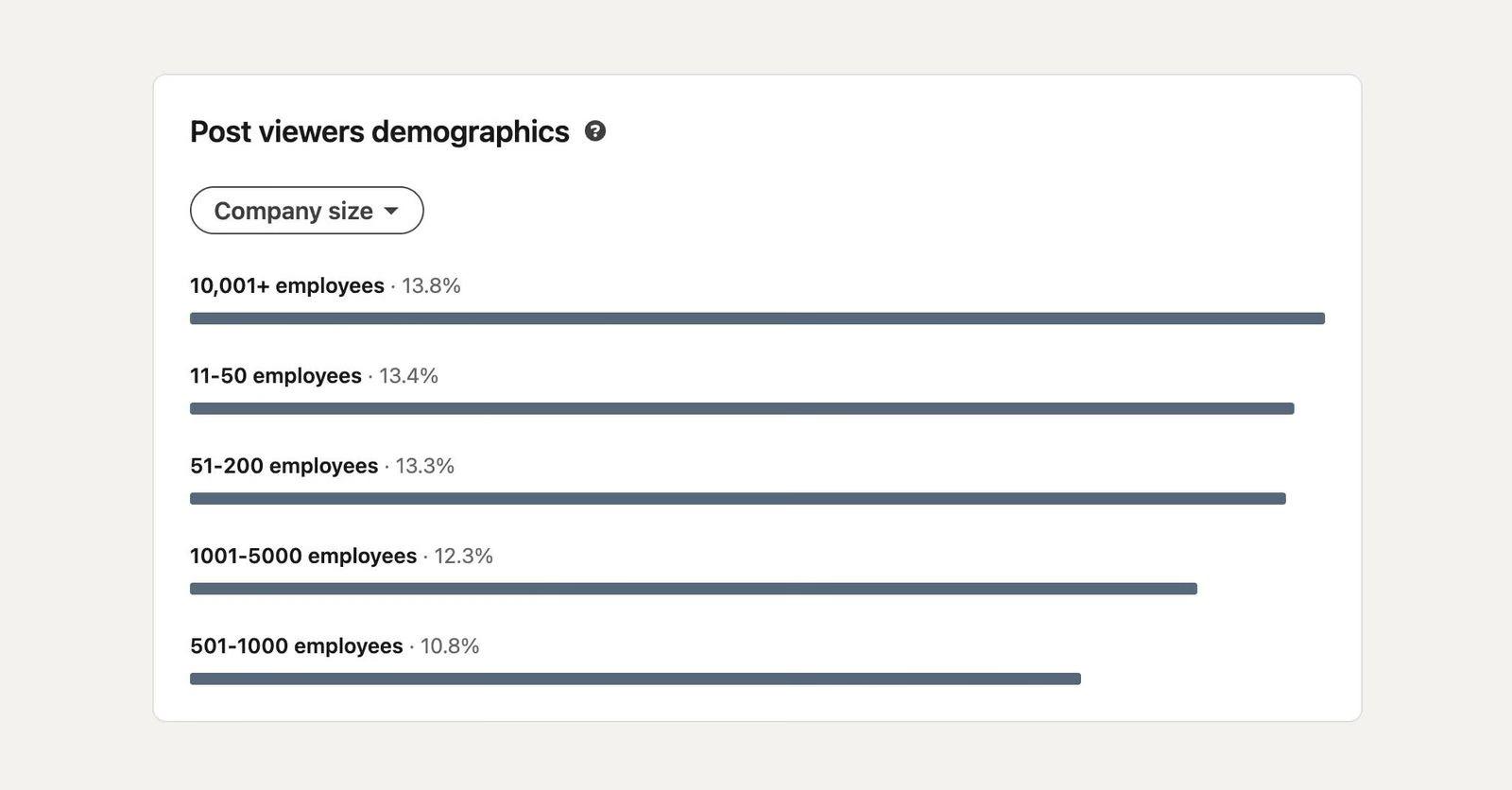
For individual posts, you can see the total impression count in the bottom left corner of any post you own or manage. Note that LinkedIn does not allow you to see impressions for other users' posts or pages where you don't have admin access.
For personal posts, click on the impression count to see a breakdown by company size and demographics:
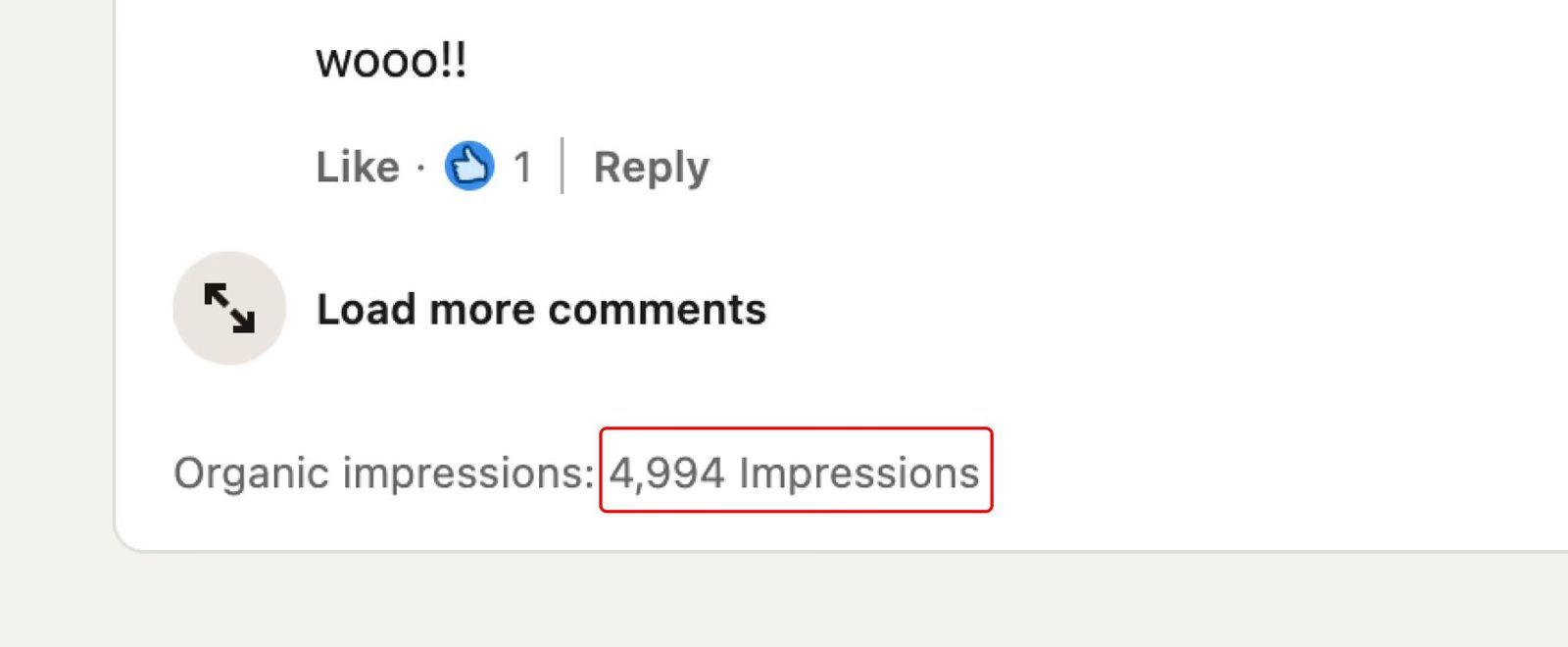
For company page posts, the organic impressions are displayed in the same location:
If you want to consistently track a high-level overview of impressions across all posts, and patterns in your post performance, we suggest using a dedicated social media and analytics tool like Ordinal.
Deeper Analytics Access
For more detailed insights, tap "View post analytics" below any published content on your profile or company page. The dashboard shows total impressions at the top, broken down by organic, paid, and viral sources.
For profile-level analytics, navigate to your LinkedIn profile and select "Analytics & tools" from the top menu. Choose "Post impressions" to see trends over 7, 28, or 90 days. Company pages offer similar analytics under the "Analytics" tab, with more detailed demographic breakdowns of who's seeing your content.
Metrics to Track Alongside Impressions
Track these metrics for complete insight:
- Engagement rate – Interactions divided by impressions
- Members reached – Unique viewers
- Click-through rate – If you included links
- Follower growth rate – Impact on your audience size
Compare impression counts across different content types and posting times to identify patterns. Export your data monthly to spot trends the in-app analytics might miss. If impressions spike or drop significantly week-over-week, review what changed in your content strategy, posting frequency, or format choices during that period.
What Is a Good Number of Impressions on LinkedIn
The answer really depends on your follower count and goals, but recent data provides helpful benchmarks. In 2024, the average LinkedIn post received 811 impressions, up from 696 in 2023. That's a 16 percent year-over-year increase, reflecting LinkedIn's growing engagement.
For most professionals, 1,000 impressions marks a solid baseline. If your posts consistently hit this number, your content is performing reasonably well. Anything between 100 and 500 impressions is typical for accounts with smaller networks or lower engagement rates.
When impressions climb above 5,000, you're entering strong performance territory. Your content is likely being shown beyond your immediate network through shares or algorithmic distribution. Posts reaching 10,000 to 50,000 impressions indicate serious traction.
Viral territory starts around 50,000 impressions, where your content has clearly resonated and spread widely. Hitting 100,000 or more impressions is rare and exceptional, typically reserved for posts that spark conversations or get picked up by influential accounts.
Keep in mind that a founder with 500 connections will see different numbers than a company page with 10,000 followers. Context matters more than raw numbers.
How LinkedIn's Algorithm Affects Your Impressions
LinkedIn's algorithm underwent significant changes in 2025, moving away from chronological feeds toward relevance-based distribution. Your content no longer disappears after the first few hours. Instead, evergreen posts can accumulate impressions for days or even weeks if they continue generating engagement.
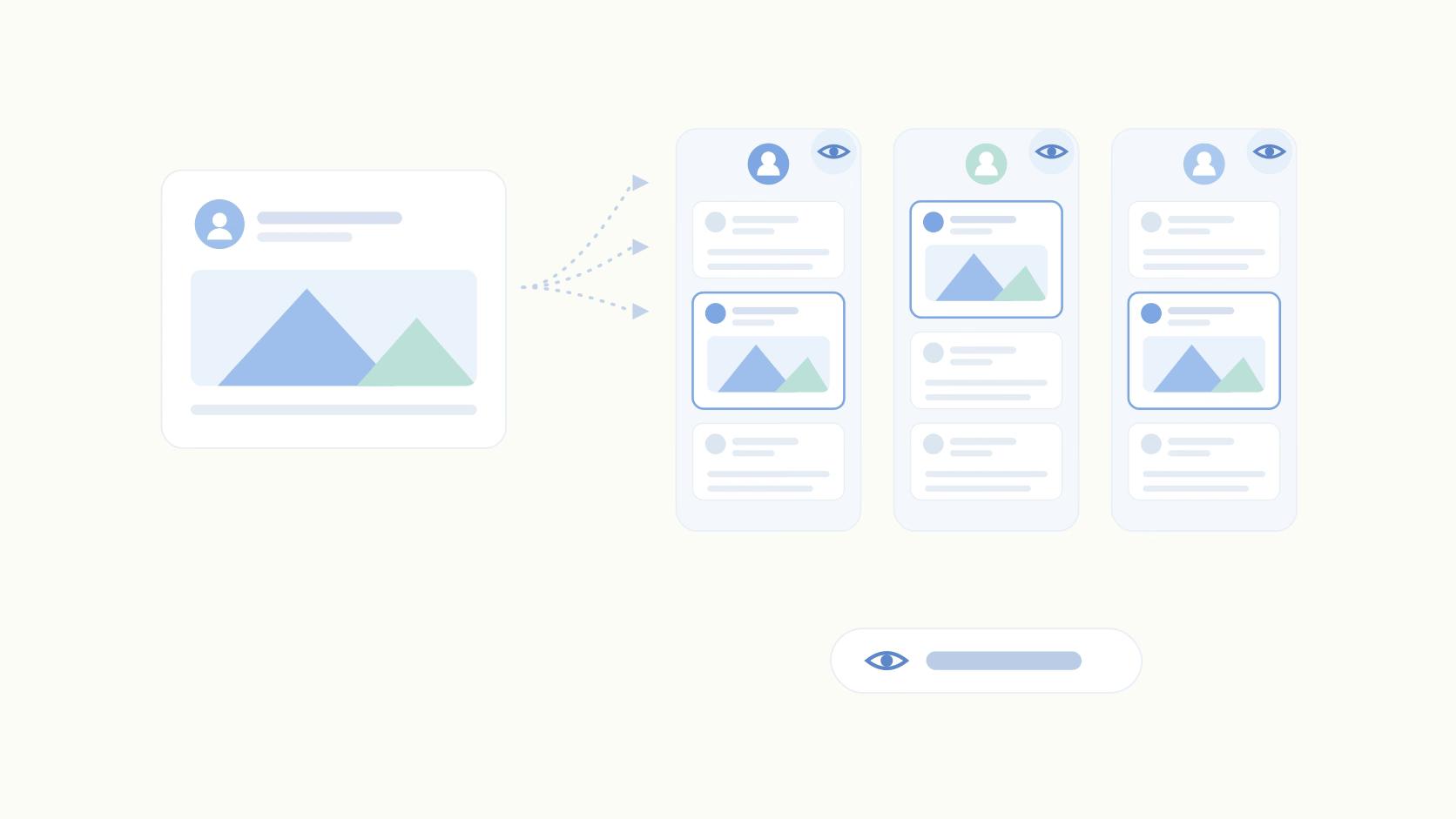
Here's how the testing process works: When you publish, LinkedIn shows your post to a small sample of your network first, typically 5 to 10 percent of your connections or followers. The algorithm watches closely for early engagement signals like likes, comments, shares, and dwell time (how long people spend reading).
If that initial group responds positively, LinkedIn expands distribution to a broader audience. Strong performance in round two triggers another expansion, potentially showing your content to second-degree connections and relevant professionals outside your network. This cascading distribution explains why some posts see impression spikes hours or days after publishing.
Posts that generate meaningful conversations through comments get priority treatment. The algorithm interprets comment threads as signals that your content sparks valuable discussion, warranting wider distribution. Single-emoji reactions carry less weight than thoughtful replies.
Why Your LinkedIn Impressions Might Be Going Down in 2025
If your impressions have dropped recently, you're not alone. Recent data shows reach declining 11 to 20 percent across all content types, with some users reporting organic reach drops of 66 percent.
Company pages face the steepest declines. LinkedIn's algorithm increasingly favors personal profiles over brand pages, meaning posts from your company account will naturally see less distribution than identical content shared from a founder's or employee's profile. This shift reflects LinkedIn's push toward authentic, person-to-person professional networking.
Competition for attention has intensified as more professionals and brands publish content daily. Your content now competes with millions of other posts for the same feed space. Even quality content can get buried.
Algorithm updates throughout 2025 have also reweighted what gets shown. Posts with external links see reduced distribution compared to native content, and certain formats receive preferential treatment over others.
Content Formats That Drive the Most Impressions
Different content formats perform very differently when it comes to impression counts. If you're looking to maximize visibility, choosing the right format matters as much as your message.
Polls generate the highest number of impressions on LinkedIn. They create natural curiosity that stops scrollers mid-feed, and the interactive element prompts people to engage even if they wouldn't typically comment on a post. Each vote counts as an engagement signal, telling LinkedIn's algorithm to show your content to more people.
Multi-image posts follow close behind. The carousel format keeps people on your post longer as they swipe through, increasing dwell time and triggering wider distribution.
Native documents (PDFs uploaded directly to LinkedIn) earn a 5.85% engagement rate per post. These perform well because they position you as sharing valuable resources while keeping users on the network rather than sending them elsewhere.
Text-only posts and single images typically generate fewer impressions unless the content itself is exceptionally strong or conversation-starting.
Understanding which formats perform best is just the first step. Here's how to actively increase your impressions regardless of format.
How to Increase Impressions on LinkedIn
Posting during peak hours dramatically improves your chances of early engagement, which signals the algorithm to distribute your content more widely. For most B2B audiences, Tuesday through Thursday mornings between 8 and 10 AM work best. Test different times and track which windows generate the fastest initial responses.
Your first sentence determines whether people stop scrolling or keep moving. Skip generic openers like "I'm excited to share" and lead with specific, curiosity-driving statements that promise value immediately.
The first 60 minutes after publishing are critical. Early engagement tells LinkedIn your content deserves wider distribution. Coordinate with your team to like and comment quickly, or use a tool to automate initial engagement from team accounts.
Use three to five relevant hashtags maximum. More than that looks spammy and doesn't improve reach. Mix popular industry tags with niche-specific ones to balance discoverability with targeting.
Turn your team into amplifiers through employee advocacy. When colleagues share or engage with your posts, their networks see your content, multiplying your impression potential beyond your direct connections.
While these strategies will help boost your impressions, tracking performance across multiple posts and accounts can quickly become overwhelming. This is where dedicated social media management tools become valuable.
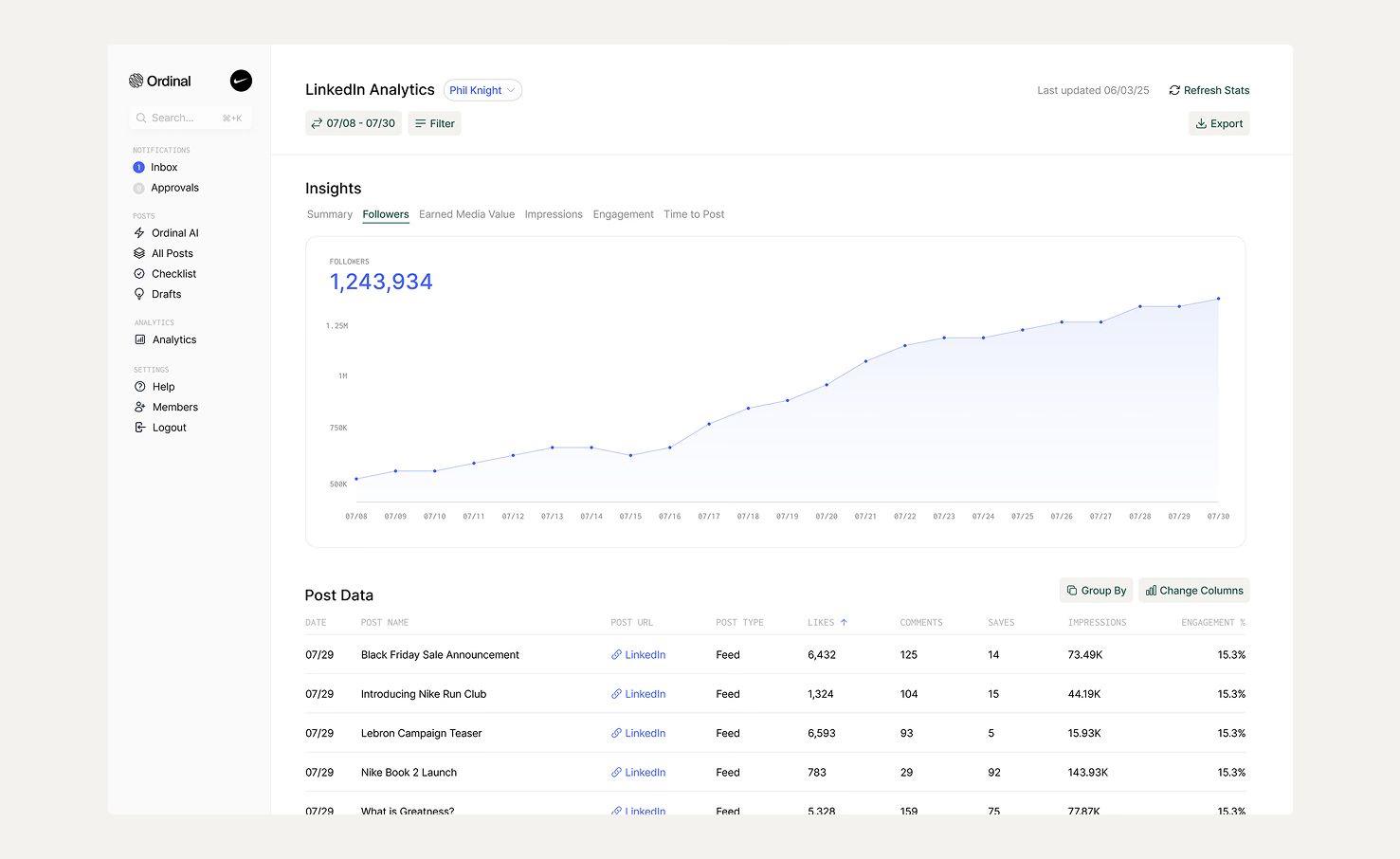
Using Ordinal to Track and Measure Impressions on LinkedIn
For individual professionals who don't need multi-account management, LinkedIn's native analytics provide all the essential impression data. Focus on tracking your top-performing posts, noting which formats and topics consistently generate high impressions, and refining your content strategy based on those patterns.
However, for teams managing multiple LinkedIn accounts and coordinated campaigns, LinkedIn's native analytics quickly become unwieldy. This is where a dedicated social media management platform like Ordinal becomes invaluable for teams serious about LinkedIn content performance.
Key Features
- Centralized Dashboard and Analytics -Ordinal centralizes impression tracking across all your LinkedIn profiles and company pages in a single dashboard. Instead of logging into each account separately to check performance, you can view impression trends for your entire social content operation at a glance. The platform's analytics go beyond simple impression counts - you can filter performance data by campaign, content type, or time period to understand what's working and identify patterns in which content types consistently generate high impressions.
- Advanced LinkedIn Insights – Go beyond basic LinkedIn analytics with advanced insights on what post formats (e.g. text vs image) and content buckets are performing the best for each profile. Additionally, Ordinal also calculates an Earned Media Value metric which calculates the amount of equivalent ad dollars you would've had to spend to drive the equivalent number of impressions.
- Team Comment & Repost – Let teammates comment on or repost high-performing content from their own accounts within a set window, for example the first 12 hours after publishing. Since reposts contribute to your total impression count, this feature effectively multiplies your content's visibility without requiring manual coordination.
- Coordinated Engagement Tools – Send Slack notifications to your team when posts go live, prompting employees to quickly like, comment, and share. Set up auto-likes from multiple team accounts to jumpstart engagement automatically, helping your content gain traction and reach a wider audience.
- Campaign Management and Content Calendar – Organize posts into campaigns, schedule them for optimal posting times with built-in best time to post suggestions, and track impression performance across your entire content calendar. This is especially valuable for agencies managing multiple client accounts or large organizations with complex approval workflows.
Final Thoughts on LinkedIn Impression Metrics
Whether you're building your personal brand as an individual professional or managing multiple LinkedIn profiles for a B2B organization, understanding impression data helps you create more effective content. By tracking how often your posts appear across feeds, profiles, and reposts, you can identify which content resonates with your audience and how the algorithm amplifies your message.
For B2B teams managing multiple LinkedIn profiles - executive accounts, company pages, or employee advocacy programs - the real value comes from correlating impression data with engagement and business outcomes. Modern social media management platforms like Ordinal centralize impression tracking across all your accounts, with features like auto-repost functionality to multiply reach and analytics that connect social engagement to revenue opportunities.
Start by establishing baseline impression benchmarks for your content, then experiment with posting times, formats, and repost strategies to systematically increase your visibility and drive real business results.
FAQ
How Do I Check My Impressions on LinkedIn?
Open a post you own or manage and look at the impression count in the bottom left corner, then tap "View post analytics" below it for the full breakdown by organic, paid and viral sources. For a view across all your posts, go to your profile, select "Analytics & tools" and choose "Post impressions", which you can filter to 7, 28 or 90 days.
Can You See Impressions on LinkedIn?
Yes, on posts you own or manage. LinkedIn shows impression counts on your own personal posts and on any company page where you have admin access. You can't see impressions on other people's posts, so there's no way to check how a competitor's or colleague's content performed unless they share the numbers themselves.
How do impressions differ from reach on LinkedIn?
Impressions count every time your content appears on someone's screen, while reach measures unique users who saw your content. One person can generate multiple impressions by viewing your post several times, but they only count once toward your reach.
Can I see impression data for posts from accounts I don't manage?
No, LinkedIn only shows impression data for posts on your own personal profile or company pages where you have admin access. You cannot view detailed impression metrics for other users' content.
Why do my impressions sometimes spike days after publishing a post?
Impression spikes often occur when someone with a large following reposts your content, exposing it to their audience. Since repost impressions count toward your total, this can dramatically increase your numbers even days after the original publication.
Does someone need to read my post for it to count as an impression?
No, LinkedIn counts an impression any time your content loads on someone's screen, even if they scroll past it immediately without reading or interacting with it.
How can I track impressions across multiple LinkedIn accounts efficiently?
Using a social media management tool like Ordinal lets you monitor impression data for all your LinkedIn profiles and company pages in one centralized dashboard, rather than logging into each account separately to check performance.
Related Posts
Looking to learn more? The below posts may be helpful for you to learn more about social media and content marketing.