

To post multiple images on LinkedIn, click the image icon in the composer and select up to 20 files at once, on either desktop or the mobile app. That's the whole mechanic, and it takes about 30 seconds. The harder question is how many of those 20 slots you should fill, and the data says far fewer than the ceiling suggests.
In our experience, 3-image posts tend to have the highest engagement among multi-image posts, ahead of both 4-image and 2-image posts. The 20-image limit is a capability, not a target, and treating it like one is where event recap posts quietly die. Image posting volume is climbing too, from 5 to 7 posts per month per account (LinkedIn posting frequency, Socialinsider 2026), so more people are making this decision more often.
TLDR:
- LinkedIn supports up to 20 images in a single post on both desktop and mobile
- In our experience, multi-image posts tend to see meaningfully higher engagement than single-image or text-only posts
- 3 images tends to be the sweet spot, outperforming both 4-image and 2-image posts in our experience
- Plenty of schedulers cap out below LinkedIn's real limits or drop multi-image posts entirely
How to Post Multiple Images on LinkedIn
LinkedIn allows up to 20 images in one post, and you can mix images and GIFs in the same upload. Here's the desktop path:
- Open the composer from your feed or company page and click the image icon.
- Select your files, holding Ctrl (Windows) or Cmd (Mac) to pick multiple at once.
- Drag images in the preview tray to set the order.
- Add alt text to each image individually.
- Write your caption and post.
On mobile, tap Post, tap the photo icon, multi-select from your gallery, reorder, add alt text, and publish. The mobile gallery grid is faster for multi-select than the desktop file picker, so if you're recapping an event from your phone, stay on the phone.
File specs are simple: JPG, PNG, and GIF are supported, and consistent dimensions matter more than any single ideal size. Square 1200x1200 survives cropping in every grid position, which is why it's the safest default. Full specs live in our guide to LinkedIn image dimensions.
Two constraints catch people out. You can't mix images with a link preview card in the same post, so adding images kills the preview. And once published, you can edit the caption but you can't add, remove, or reorder the images. Alt text is per-image, which means a 9-image post is 9 separate alt text fields and a real time cost at volume.
How your set renders depends entirely on the count:
How Many Images Should You Post?
Three images is the highest-performing count on LinkedIn. In our experience, 3-image posts tend to see the highest engagement, ahead of both 4-image and 2-image posts. Multi-image posts overall sit at 2.43% median engagement versus 2.13% for single images and 1.54% for text-only.
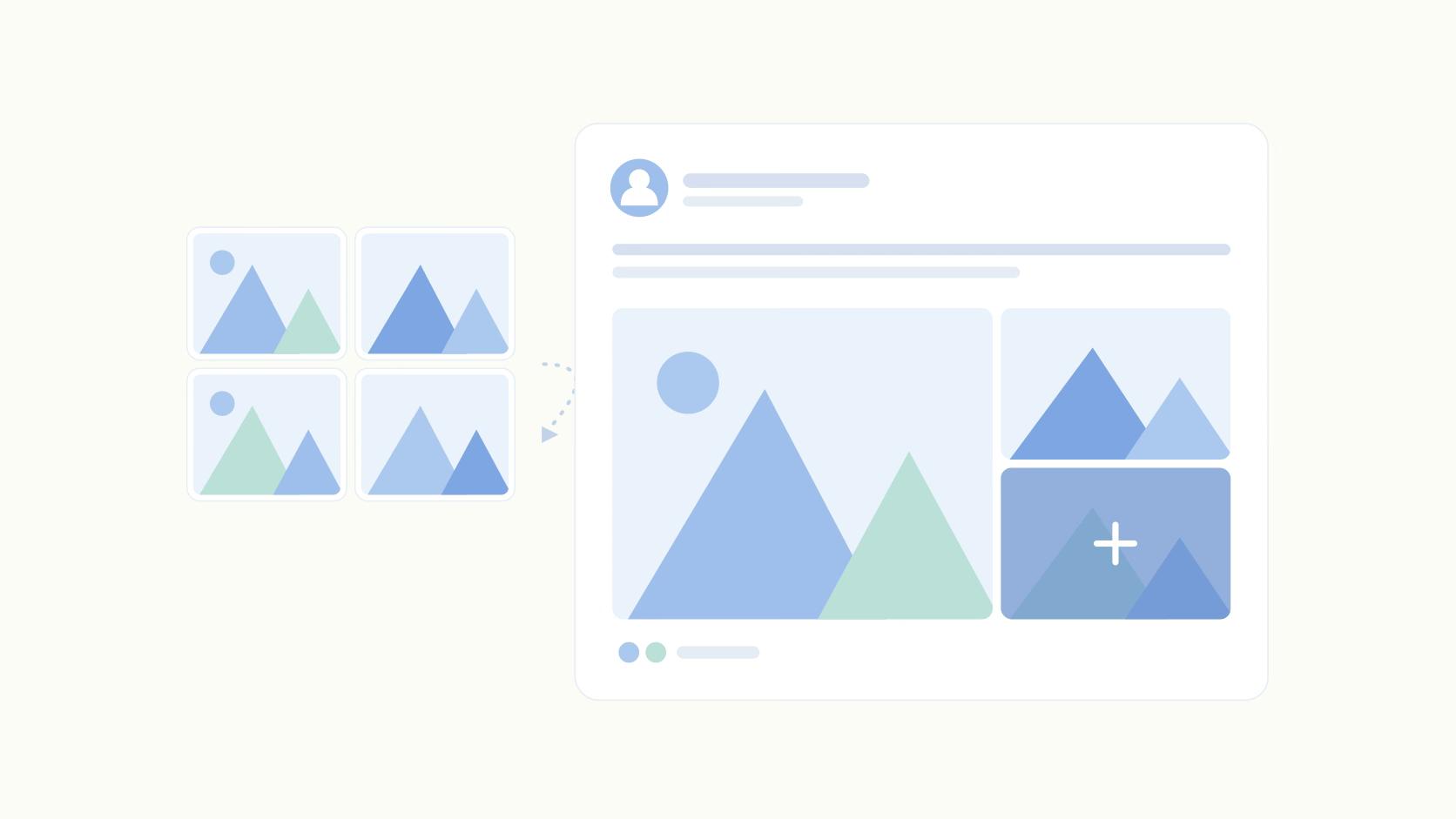
The mechanic behind it is composition. Three images render as one large frame with two stacked beside it, which reads as a deliberate layout at scroll speed, and the eye lands somewhere. Nine images render as a wall of thumbnails with a counter overlay, so nobody parses it and nobody taps in.
Independent data points the same direction. A 1.3-million-post benchmark found multi-image posts averaging engagement, just behind native document posts at (Vulse, 2026). Different methodology (mean across a different dataset rather than Ordinal's median), same finding.
Then there's the two-image problem. Posts with exactly 2 images underperform both 3 and 4, because LinkedIn splits them into two narrow vertical halves that crop badly on anything shot in landscape. If you have two images, find a third or cut to one.
Multi-Image Posts vs. PDF Carousels
These get treated as interchangeable formats and they're built for different jobs. Multi-image posts are for showing. Document carousels are for teaching.
The Vulse gap of for documents against for multi-image is real but narrow, and it mostly disappears once you match the format to the content. A document post counts each page swipe as an engagement signal, which favors longer sequential content in the 5 to 15 slide range. Multi-image posts work differently, and their value is instant visual comprehension in the feed without anyone clicking anything.
Documents still aren't the automatic pick, because they need design work and a caption that earns the swipe, while a three-photo event recap needs neither and goes out in 90 seconds. Our guide to posting carousels on LinkedIn covers the production side.
The decision rule: sequential story with text on the slides means PDF carousel, and visually obvious content means multi-image.
Where Schedulers Break on Multi-Image Posts
The gap between what LinkedIn's API allows and what most schedulers implement is where social managers lose hours every month. Multi-image sits alongside PDFs, polls, and personal profile tagging on the list of things that force a manual post.
There are some specific failures worth naming:
- Image order isn't preserved on publish, so your carefully sequenced recap comes out shuffled
- There's no per-image alt text field, so you either skip accessibility or post natively
- Silent API errors mean the post fails and nobody notices for two days
- And no grid preview means you find out how a 5-image set crops at the same moment your audience does
The posts most worth scheduling are often the ones going out from personal profiles, since personal profiles tend to see stronger reach than company pages in general.
"Personal accounts on LinkedIn get on average around 8,700 impressions per post. And company profiles are only getting around 1,500. So it's a huge multiple of difference, a little bit more than 5X." — Jeffrey Zhao
Ordinal supports up to 20 images and GIFs in a single LinkedIn post, with drag-to-reorder, per-image alt text, and a pixel-accurate grid preview that shows exactly how the composition renders before it publishes. That preview is the part that changes behavior, because seeing a 9-image thumbnail wall in the editor usually convinces people to cut it to three. More on scheduling LinkedIn posts here.
Final Thoughts
Go audit your last ten image posts. Count how many used more than four images, then compare their engagement rate against your three-image posts. If the big galleries didn't win, cap yourself at four going forward and put the extra photos in a comment instead.
Frequently Asked Questions
How many images can you post on LinkedIn at once?
LinkedIn supports up to 20 images in a single post, and you can mix images and GIFs in the same upload. That's the technical ceiling, but in our experience, 3-image posts tend to see the highest engagement.
Can you post multiple images on LinkedIn from desktop?
Yes. Click the image icon in the composer, then Ctrl-click on Windows or Cmd-click on Mac to select multiple files at once. Some older guides claim desktop is limited to a single image at a time, but that hasn't been true for a while.
How many images should you post on LinkedIn for the best engagement?
Three. In our experience, 3-image posts tend to see the highest engagement, ahead of both 4-image and 2-image posts. Multi-image posts overall average 2.43% median engagement, well above the 1.54% median for text-only posts.
Can you edit or reorder images after publishing a LinkedIn post?
You can edit the caption text after a post goes live, but you can't add, remove, or reorder the images themselves. Get the sequence right in the preview tray before you hit post.
What image size should you use for multi-image LinkedIn posts?
Use consistent dimensions across every image in the set, since LinkedIn crops each grid position differently depending on how many images you upload. A square 1200x1200 image is the safest default because it holds up across every position in the grid.
Can you mix images and a link in the same LinkedIn post?
No. Adding images removes the link preview card entirely. If you need both, drop the URL in the first comment or write it into the caption text.
Do multi-image posts perform better than PDF carousels on LinkedIn?
They're close, and the right pick depends on the content. Vulse's 2026 benchmark of 1.3 million posts put native documents at average engagement and multi-image posts at. Documents win for sequential content that needs on-slide text; multi-image wins when the photos already speak for themselves.
Can you schedule multiple images on LinkedIn?
LinkedIn's native scheduler handles it, and some third-party tools do too, but plenty cap the image count below LinkedIn's 20-image limit or drop images silently on publish. Confirm your scheduler preserves image order and supports alt text on every image, not just the first one.
Related Posts
Looking to learn more? The below posts may be helpful for you to learn more about social media and content marketing.