

The LinkedIn feed is packed with plain-text posts, and you might be wondering how some people manage to add bold headlines and italicized text. Since the platform doesn't offer a LinkedIn text editor with styling buttons, you'll need to generate Unicode characters externally and paste them into your drafts. We'll cover the fastest methods for mobile and desktop, plus the strategic spots where bold text drives engagement without breaking accessibility.
TLDR:
- LinkedIn lacks native bold and italics formatting; you must use Unicode converters to generate bold text or italicized text externally
- Bold text works across posts, profiles, and messages, but hurts searchability and accessibility
- Reserve bold formatting for headlines and CTAs only; keep core keywords in plain text for SEO
- Ordinal integrates text formatting directly into your drafting workflow with team collaboration and scheduling
Why LinkedIn Text Formatting Matters for Engagement
The LinkedIn feed is crowded, and we know that having posts visually stand out can influence whether users stop scrolling. Strategic LinkedIn text formatting does more than look good; it drives performance.
Research indicates well-structured posts generate up to 3x more engagement compared to plain text blocks, especially when you follow best practices for posting on LinkedIn.
With organic reach declining by nearly 50% in 2025 due to major algorithm changes, strategic formatting has become essential for maintaining visibility.
This optimization is mandatory for mobile audiences. 91% of LinkedIn engagements occur on mobile, so dense paragraphs often intimidate readers. Using LinkedIn bold text creates visual anchors that improve readability and signal value to the algorithm.
How LinkedIn Bold Text Actually Works (Unicode Explained)
LinkedIn does not support bold or italics text formatting natively. If you attempt a standard LinkedIn bold text shortcut like Control+B in the compose box, nothing occurs. The network relies on plain text to ensure readability across every device. This is why creators must use a bold text generator LinkedIn tool to add emphasis.
These tools function by using Unicode. A Unicode text converter LinkedIn bold utility swaps standard characters for mathematical alphanumeric symbols. While specific symbols look like styled letters to the human eye, backend systems recognize them as distinct characters. Because these are specific symbols rather than styled text, you must generate them externally and paste them into your post.
The Manual Method: Using Any Text Editor to Create Bold Text
LinkedIn lacks a native text formatter, so you need to use a free LinkedIn text formatter. This manual process acts as a bridge between your draft and the final update, utilizing Unicode characters to bypass restrictions.
- Open a LinkedIn bold text generator or a Unicode converter in your browser.
- Input the phrase or headline you want to emphasize.
- Select your preferred style, usually Serif or Sans-Serif.
- Copy the converted text to your clipboard.
- Paste it directly into your post, profile summary, or experience section.
This method shows how to bold text in a LinkedIn post on mobile or on a laptop. It requires no downloads. This process can be manual and tedious, so we recommend using a social media tool like Ordinal that supports native bold and italicized text to format posts for LinkedIn consistently.
Where You Can Use Bold Text on LinkedIn
Understanding LinkedIn how to bold text unlocks visual hierarchy across your entire presence, beyond the feed. Since the Unicode method functions in most text fields, you can apply formatting strategically.
Consider these high-impact areas:
- Posts: Emphasize hooks and lists.
- About Section: Use LinkedIn bold text in summary areas to spotlight value propositions. If you're managing a LinkedIn Premium company page, bold formatting in your page description can help key features stand out to visitors.
- Experience: Many users ask how to bold text in LinkedIn experience sections to highlight key metrics.
- Messages: Learning how to bold text in LinkedIn message threads makes outreach stand out.
The Downsides: Accessibility and Searchability Issues
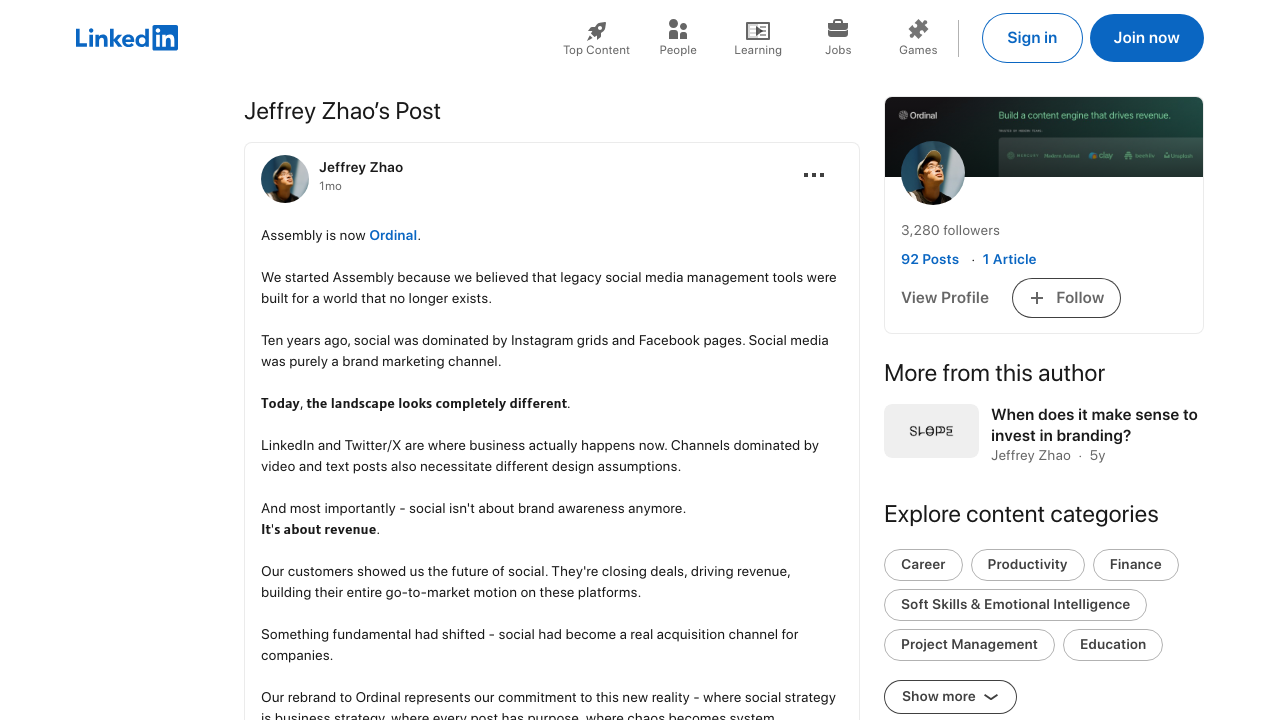
We believe it is important to discuss accessibility before applying formatting. Screen readers often struggle to interpret output from a Unicode bold text generator for LinkedIn. Software reads specific characters as mathematical symbols, confusing visually impaired professionals.
Search visibility is another trade-off. The algorithm indexes standard text, not the symbols used to create bold LinkedIn text. Formatting core keywords removes them from search results. Older devices may also fail to support this LinkedIn text formatting, displaying empty boxes instead of letters. We recommend using these styles sparingly to avoid unreadable posts.
Best Practices: When to Use Bold Text (And When Not To)
Here at Ordinal, we treat LinkedIn text formatting as a precision instrument. Overusing styles creates visual clutter that hurts readability. We recommend reserving bold LinkedIn text for structural hierarchy instead of just for decoration.
Strategic application directs the reader's eye to high-value areas:
- Headlines that stop the scroll before the truncation point.
- Lists and data points that need distinct separation.
- Calls-to-Action at the end of posts.
The answer really depends on searchability. Since algorithms read Unicode characters as symbols, never apply LinkedIn post bold text to core keywords or hashtags. This makes those words invisible to search. Keep primary terms in plain text to maintain discoverability.
Using a Social Media Management Tool Like Ordinal for Better Formatting
Most users simply want a quick formatting solution. Copy-pasting Unicode characters works for solo creators, but scaling this across a marketing team creates friction. Here are Ordinal, we make things easier by integrating a LinkedIn text editor directly into the drafting experience.
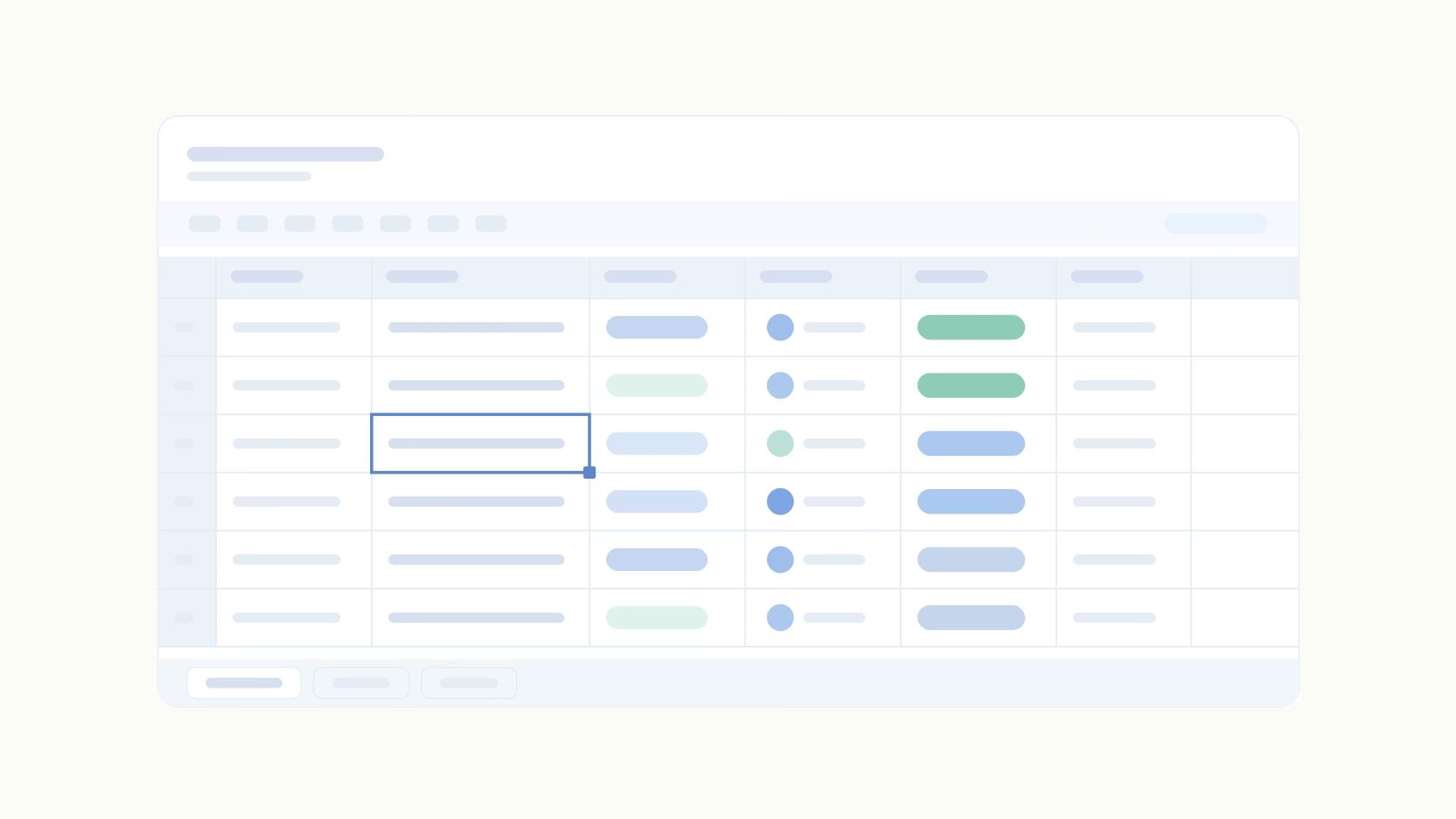
Simply highlight any text and click the bold or italic button - no Unicode converters, no external tabs, no copy-pasting required. This removes the need for external tools and keeps teams focused on strategy.
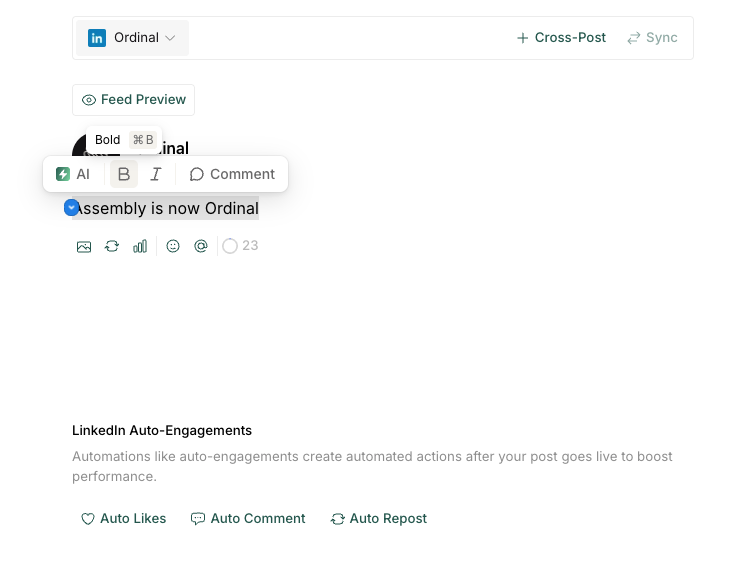
Our system provides realistic previews to show exactly how LinkedIn post text formatting appears on the feed. You can visualize line breaks and truncation points immediately. For teams serious about social content, this integrated approach replaces the fragmented reliance on a basic LinkedIn text formatter.
Other LinkedIn Text Styles Beyond Bold
The standard LinkedIn post composer does not provide native formatting buttons for bold or italicized text. Instead, you must use a LinkedIn text formatter that generates Unicode characters. These are specific alphanumeric symbols that render as bold text across most devices and browsers.
Follow this simple process to format your posts:
- Write your update in a third-party Unicode text converter.
- Choose the bold font style that fits your aesthetic, such as serif or sans-serif.
- Copy the converted text and paste it directly into the LinkedIn composer.
This method allows you to highlight key points in your headlines, post body, and about section without requiring technical expertise.
Quick Comparison: Free Unicode Converters vs Full Social Tools
The right choice depends on the amount of content you post. For sporadic posting, a free LinkedIn text formatter works fine for basic Unicode conversion. You simply generate text and paste it.
However, professional teams need more. At Ordinal, our LinkedIn text editor integrates formatting directly into the drafting process. We combine styling with approval loops and scheduling, eliminating the friction of manual copy-pasting.
Here is how these approaches compare:
The best LinkedIn text formatter fits your workflow. If you need a quick font change, browser tools would work. If you need a way to consistently apply bolded or italicized text to social content, Ordinal is the superior option.
Final thoughts on making your LinkedIn posts stand out
While bold text generators for LinkedIn handle the Unicode conversion, the manual workflow slows down consistent posting. If you're managing social content across multiple profiles or need team collaboration, you need formatting that integrates directly into your drafting process.
Ordinal eliminates the external tool juggling by building text formatting into the same interface where you write, approve, and schedule posts. Your team gets realistic previews, approval workflows, and analytics that tie social engagement to pipeline - all without copy-pasting between browser tabs.
For teams serious about turning LinkedIn into a revenue channel, that integrated approach beats piecing together free tools.
FAQ
How do I bold text in a LinkedIn post on mobile?
Open a mobile browser like Safari or Chrome, search for a Unicode text converter, input your phrase, and copy the converted output. Then paste the formatted text directly into your LinkedIn app draft - this method works for both iPhone and Android devices.
Can you use keyboard shortcuts to bold text on LinkedIn?
No, LinkedIn does not support native formatting shortcuts like Control+B or Command+B. The platform relies on plain text to maintain readability across all devices, so you must use an external Unicode converter to generate bold characters before pasting them into your post.
Why doesn't my bold text appear in LinkedIn search results?
Unicode bold characters are interpreted by LinkedIn's algorithm as mathematical symbols rather than standard letters, which removes them from search indexing. Keep core keywords, job titles, and hashtags in plain text to maintain discoverability while using bold formatting only for visual emphasis.
What's the difference between using a free text formatter and a social media management tool for LinkedIn formatting?
Free Unicode converters require manual copy-pasting for each post, which works for occasional updates but creates friction at scale. Social media management tools like Ordinal integrate formatting directly into the drafting workflow with realistic previews, team collaboration, and scheduling - eliminating the need to switch between multiple browser tabs.
Where should I avoid using bold text on my LinkedIn profile?
Avoid applying bold formatting to searchable fields like job titles, company names, and primary keywords in your experience or about sections. Screen readers also struggle with Unicode characters, so limit bold text to non-essential emphasis points like headlines, lists, and calls-to-action rather than critical profile information.
Related Posts
Looking to learn more? The below posts may be helpful for you to learn more about social media and content marketing.