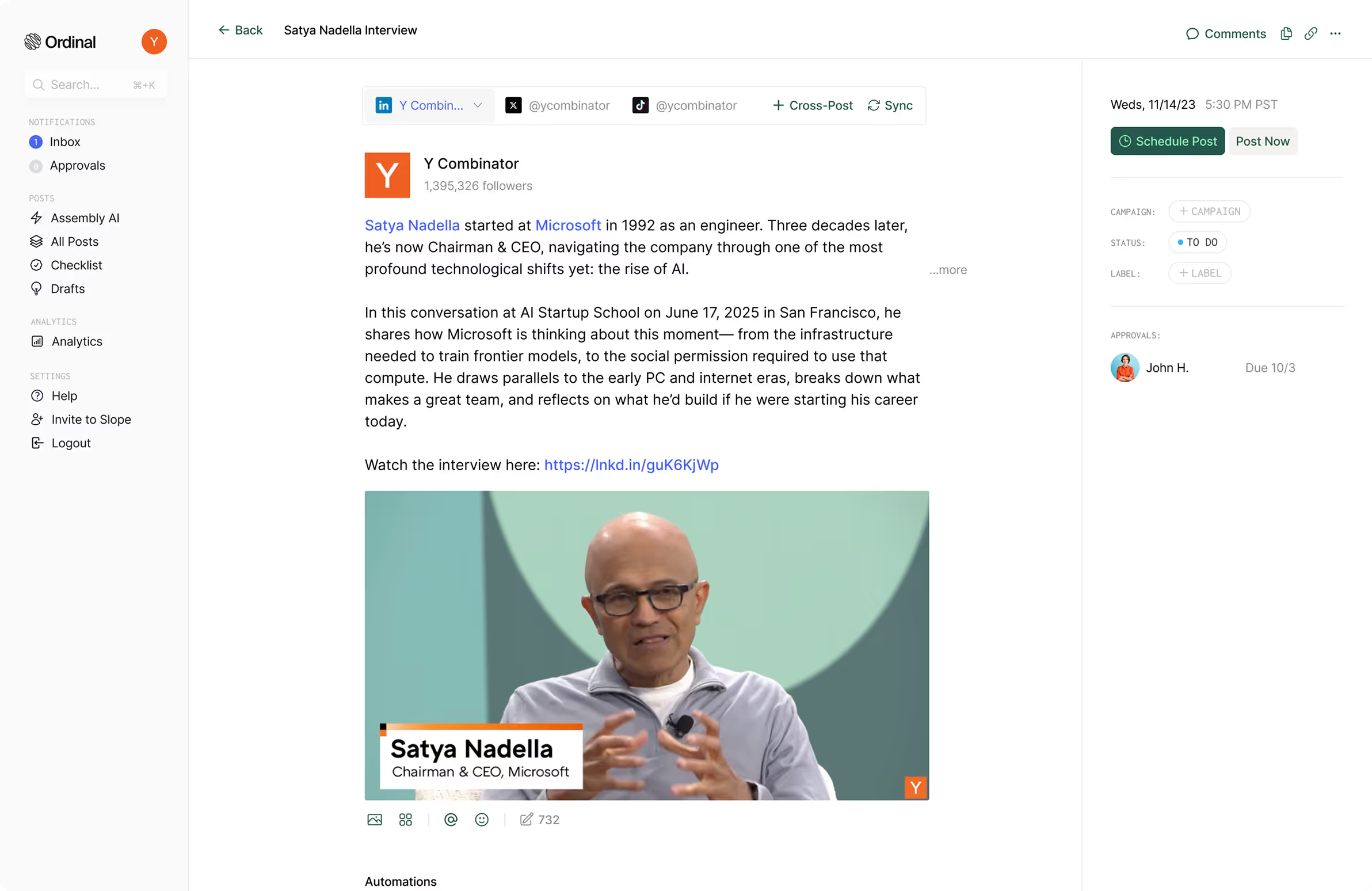
Free LinkedIn Post Preview Tool
This free LinkedIn post preview tool shows how your post will look in the feed before you publish, no sign-up required. See exactly where LinkedIn cuts it off with "…more" on desktop and on a phone, and check your character count against the 3,000 limit as you type.
Result
Feed preview
Type or paste your post to see it the way it appears in the feed, cut off after three lines with the rest behind “…more”. Switch to the phone view to check the narrower cut.
How it Works
How to Use the LinkedIn Post Preview Tool
Step 1: Type or paste your post into the box. The preview on the right updates as you type.
Step 2: Look at where the post is cut off. LinkedIn shows about three lines in the feed and hides everything else behind "…more," and the preview cuts yours in the same place.
Step 3: Tick "Preview on a phone" to see the narrower mobile cut. Most LinkedIn reading happens on phones, and the same post can lose a whole sentence there.
Step 4: Click "…more" in the preview to see the full post as a reader would after tapping, then check the counts below: characters against the 3,000 limit, the length of your first line, reading time, and hashtags.
Why Previewing a LinkedIn Post Matters
On LinkedIn, nearly everyone who sees your post sees only the top of it. The feed shows roughly the first three lines, then a "…more" link. Whether someone taps that link decides whether the rest of your post gets read at all, and the time people spend on a post is one of the things LinkedIn uses to decide how far to show it.
LinkedIn's composer does not show you that cut. You write in a tall, comfortable box, press Post, and discover in the feed that your opening line wrapped badly or that your best sentence sits one line below the fold. Previewing first means you find that out while you can still fix it.
How the "…more" Cut Really Works
A lot of advice gives the cut-off as a character count, often around 210 characters on desktop and 140 on mobile. Those numbers are a fair rule of thumb for a single unbroken paragraph, but the real rule is about lines, not characters. That has two consequences most people miss.
- Blank lines count as lines. If you open with one short sentence and then a blank line, you have used two of your three lines. The reader sees one sentence and half of the next.
- Width changes everything. A first line that fits on one line on desktop can wrap onto two on a phone, which pushes your second line out of view.
This tool cuts by lines at the feed's actual text width, on desktop and on a phone, so what you see accounts for both. That is also why the first-line stat suggests staying under 140 characters: it is about what fits before the fold on a phone.
What to Put Above the Fold
- A first line that works alone. A specific claim, a number, a question your reader is already asking, or the start of a story. Draft several with the Hook Generator and pick the strongest. Here is what the data says about LinkedIn hooks.
- A second line that adds tension, not explanation. Its job is to make the third line necessary.
- No throat-clearing. "I have been thinking a lot lately about" spends your three lines on nothing.
- No hashtags, links, or tags at the top. They are for the end.
LinkedIn Character Limits to Know
- Post: 3,000 characters
- Comment: 1,250 characters
- Headline: 220 characters
- About section: 2,600 characters
- Company page post: 3,000 characters
Reaching 3,000 is rarely the goal. Most posts that perform are a fraction of that, and a post that needs the full limit is often two posts.
Finish the Post
Starting from a blank page? The LinkedIn Post Generator writes three drafts from a short brief. Add bold text and clean line breaks with the LinkedIn Text Formatter, choose three to five tags with the LinkedIn Hashtag Generator, and publish when your audience is online: here are the best times to post on LinkedIn. Afterwards, check how it landed with the LinkedIn Engagement Rate Calculator.
Frequently Asked Questions
What is a LinkedIn post preview tool?
A LinkedIn post preview tool shows how your post will look in the feed before you publish it, including where LinkedIn cuts the text off with "…more" on desktop and on a phone. It also counts your characters against LinkedIn's 3,000 limit.
How much of a LinkedIn post shows before "see more"?
About three lines. That is often quoted as roughly 210 characters on desktop and 140 on mobile, but the cut is based on lines, so blank lines and line breaks use up the space faster than a character count suggests.
What is the LinkedIn post character limit?
3,000 characters for a post, including spaces, emojis, and hashtags. Comments are limited to 1,250 characters, headlines to 220, and the About section to 2,600.
Does LinkedIn let you preview a post before publishing?
No. The composer shows your full text but not where the feed will cut it, which is why a post can look different after you publish. Previewing it first lets you fix the opening while you still can.
Does a LinkedIn post look different on mobile?
Yes. Phones show fewer characters per line, so a first line that fits on one line on desktop can wrap onto two on mobile and push the rest of your opening below the fold. Use the phone view to check both.
Is the LinkedIn Post Preview tool free?
Yes. The tool is free, needs no account or LinkedIn login, and runs entirely in your browser. Your post is never sent anywhere.