


Introduction
When on Twitter/X, looking for specific conversations, competitor insights, or potential customers can feel like searching for a needle in a haystack. Most especially with over 500 million tweets flooding the platform every day. But with Twitter Advanced Search, looking for the information you need becomes easily accessible.
Mastering Advanced Search transforms how you use the platform. Whether you are a marketer looking for leads, a brand monitoring mentions, or a business tracking industry trends, this guide will show you how to use this powerful tool to your advantage and uncover hidden opportunities and gain competitive advantages.
How to Access Twitter/X Advanced Search
Twitter’s Advanced Search is pretty straightforward but the method varies slightly depending on the device you use.
On Desktop:
The easiest way to access Advanced Search on desktop is by visiting twitter.com/search-advanced directly. Either that, or you can:
- Go to Twitter.com
- Enter any query in the search bar
- Click the three dots (⋯) next to the search bar on the results page
- Select "Advanced Search" from the dropdown menu
On mobile:
Unfortunately, accessing Advanced Search is not available directly in Twitter’s mobile app. But you can still access this through your mobile browser by visiting mobile.twitter.com/search-advanced.
This limitation is one reason why many social media marketers prefer working on desktop - so they can access advanced searches or rely on third-party tools to enhance their Twitter research capabilities.
How To Use Twitter Advanced Search
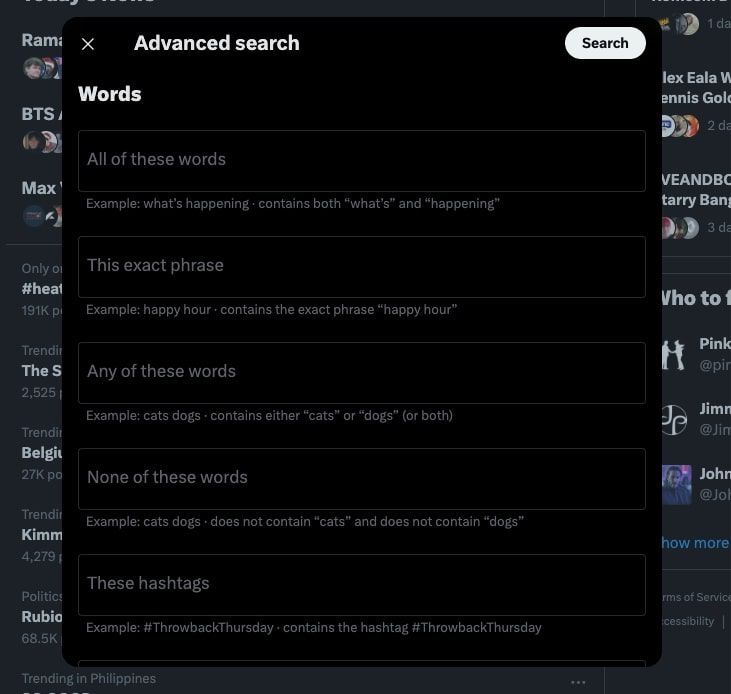
Once you have access to the Advanced Search Interface, you will see different filter fields organized into categories. Once you understand these filters, you will find exactly what you need.
Words and Phrases Filters
All of these words: You can enter multiple words that should appear in the tweets (in any order). For example, searching “social media marketing” will show tweets containing all three words.
This exact phrase: For specific phrases or names, this is the field you need. Put your phrase in quotes, like “content marketing strategy” to look for tweets with that exact wording.
Any of these words: Using this field will broaden your search to include tweets with at least one of the specified terms you need. This is useful for looking for variations like searching “Twitter” or “X” or “#TwitterTips.”
None of these words: Use this field to exclude irrelevant terms from your results. For example, if you’re researching “apple” the tech company, you might exclude “recipe” or “fruit” so you filter out the cooking content.
These hashtags: With this, you can target specific hashtags so you can find conversations around topics that are trending. The good thing is you can search for multiple hashtags like #SocialMediaMarketing or #digitalmarketing.
Written in: Filter tweets by language. Twitter supports 34 languages. This makes it easy for you to find content in your target market’s language.
Account Filters
From these accounts: This will show tweets that are only from specific users. For example, if you search "from:ordinal”, this will show tweets send by the @ordinal account.
To these accounts: Find replies that are sent to specific accounts. This becomes valuable if you want to monitor customer service interactions or see how people engage with influencers.
Mentioning these accounts: Discover any tweet that mentions a specific account. This could work for either a direct reply or a casual mention.
Engagement Filters
Twitter allows you to filter by engagement metrics. This is very useful for looking for high-performing content.
- Minimum retweets: Find tweets with at least a certain number of retweets
- Minimum likes: Filter for tweets that received a specific number of likes
- Minimum replies: Discover tweets that generated strong conversation
With these engagement filters, you identify trending content and understand what resonates with your target audience.
Date Range Filters
This filter is one of the most powerful features in Advanced Search. With it, you can search tweets within specific time frames.
From this date/To this date: Set a date range to look for historical tweets. With it, you can also analyze conversations during specific events, campaigns, or time periods. This becomes really helpful in competitive analysis or tracking how sentiment evolves over time.
Location Filters
Near this place: Find tweets that are sent from a specific geographic location. This is particularly useful for businesses or location-based marketing campaigns.
Additional Options
Replies: With this, you can choose if you want to include replies in your results or just see original tweets. This can help filter out clutter in researching original content.
Twitter Advanced Search Operators and Commands
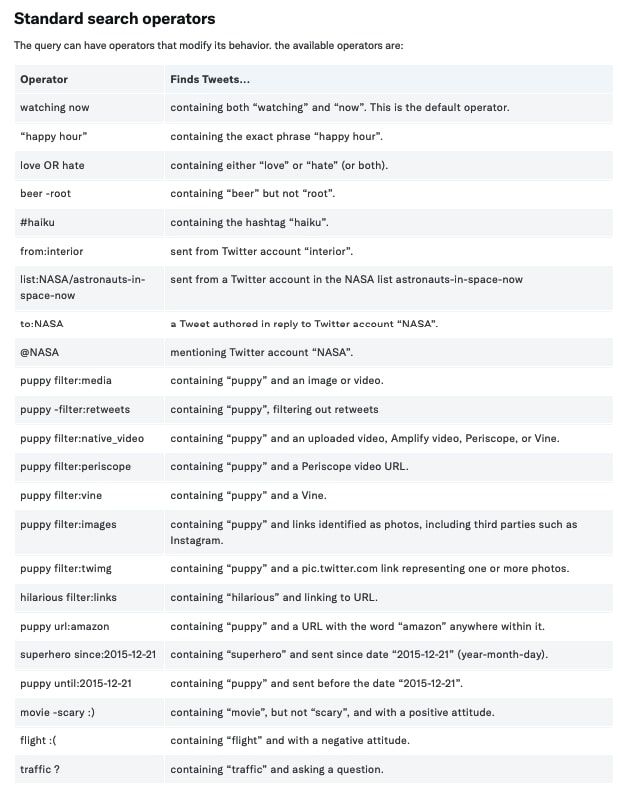
Beyond the Advanced Search Interface, Twitter also supports powerful search operators that you can type directly into any search bar. These operators give you even more detailed control over your searches and unlock capabilities that are not available through the standard interface.
Understanding Search Operators
Search operators are special commands that refine your Twitter searches with precision. While the Advanced Search form provides a user-friendly interface, learning operators allows you to:
- Create more complex, multi-layered searches
- Save time by typing queries directly into the search bar
- Access filtering options not available in the Advanced Search form
- Build reusable search strings for consistent monitoring
Complete Search Operators Reference
For a comprehensive list of all available search operators and their specific syntax, Twitter provides official documentation.
How to Use Twitter Advanced Search for Marketing
Knowing the power you hold with Twitter Advanced Search, how do you use this to your advantage? Here’s how marketers can leverage this feature for real business results.
Lead Generation
With Advanced Search, you can find potential customers that are actively expressing buying intent.
Find People Seeking Solutions:Search for phrases like "can anyone recommend," "looking for," or "need help with" combined with your industry keywords.
Example: "looking for" email marketing tool finds prospects actively seeking email solutions.
Location-Based Prospecting:Target potential customers in specific geographic areas using the location operators.
Example: "web design" near:"San Francisco" within:25mi finds people discussing web design in San Francisco.
Identify Purchase Intent:Look for signals that indicate buying readiness.
Example: "ready to buy" CRM software min_replies:2 finds prospects seriously considering CRM purchases who are engaging in discussions.
Competitive Intelligence
Take a closer look at what people are saying about your competitors and identify opportunities.
Track Competitor Mentions:Example: @competitor OR "competitor name" -from:competitor finds all mentions of your competitor (excluding their own tweets).
Analyze Competitor Sentiment:Example: @competitor :( finds unhappy customers complaining about your competitor - perfect opportunities for outreach.
Monitor Competitor Campaigns:Example: from:competitor product launch since:2024-01-01 min_retweets:10 tracks your competitor's successful campaign content.
Find Competitor Customers:Example: "switched from [competitor]" OR "left [competitor]" discovers customers who've churned from competitors.
Brand Monitoring
Track any mention of your brand across Twitter. This includes untagged references.
Find All Brand Mentions:Example: @yourbrand OR "your brand name" OR #yourbrandhashtag captures every mention, even when people don't tag you.
Track Sentiment:Example: "your brand" :) finds positive sentiment, while "your brand" :( reveals complaints.
Discover Brand Advocates:Example: "love" "your brand" min_retweets:5 identifies enthusiastic customers sharing positive experiences.
Monitor Misspellings:Example: "you brand" OR "yur brand" catches mentions with common typos.
Customer Service
Proactively identify customer issues and address them before they escalate.
Find Support Requests:Example: @yourbrand (help OR support OR issue OR problem) finds customers seeking assistance.
Discover Untagged Complaints:Example: "your brand" (frustrated OR disappointed OR angry) -from:yourbrand reveals complaints that didn't tag you directly.
Monitor Common Issues:Example: @yourbrand "not working" OR "broken" OR "error" helps identify product problems.
Identify Happy Customers:Example: "your brand" (love OR amazing OR excellent) filter:media finds customers sharing positive experiences with photos.
Content Research
Get to know what your audience cares about and find inspiration for your content strategy.
Find Trending Topics:Example: #yourindustry min_retweets:50 since:2024-12-01 shows what's resonating in your niche recently.
Discover Popular Content Formats:Example: social media marketing filter:videos min_faves:100 reveals video content that performs well.
Identify Content Gaps:Example: "how do I" social media discovers questions your audience is asking that you can answer.
Research Successful Campaigns:Example: #campaignhashtag since:2024-01-01 filter:images analyzes visual content from successful campaigns.
Influencer Marketing
Find and vet influencers who align with your brand.
Locate Relevant Influencers:Example: #fitness min_retweets:20 min_faves:50 -from:majorbrands discovers active fitness influencers.
Check Engagement Quality:Example: from:influencer min_replies:10 verifies the influencer generates genuine conversation.
Find Micro-Influencers by Location:Example: fashion blogger near:NYC within:15mi min_faves:20 identifies local influencers with engaged audiences.
Vet Influencer Authenticity:Example: from:influencer filter:media reviews their content quality and consistency.
How to Use Ordinal to Enhance Your Twitter Searches
Take your Twitter marketing even further with Ordinal. You can combine Twitter’s native Advanced Search with Ordinal’s social media management capabilities.
What is Ordinal?
Ordinal is an end-to-end social media management platform that helps you draft, plan, schedule, and analyze content across multiple social channels, including Twitter/X, LinkedIn, Instagram, and more. For Twitter specifically, Ordinal offers features that complement and enhance your Advanced Search workflows.
Key Ordinal Features for Twitter
Integrated Content Planning: After you’ve used Advanced Search to identify high-performing content and trending topics, you can use Ordinal’s visual calendar to plan your posting strategy around these insights. Schedule your tweets at optimal times to make sure you reach your audience when they are most active.
Multi-Account Management: If you handle multiple Twitter accounts, Ordinal allows you to apply what you find across all accounts from a single dashboard. This becomes especially helpful for agencies that manage multiple profiles.
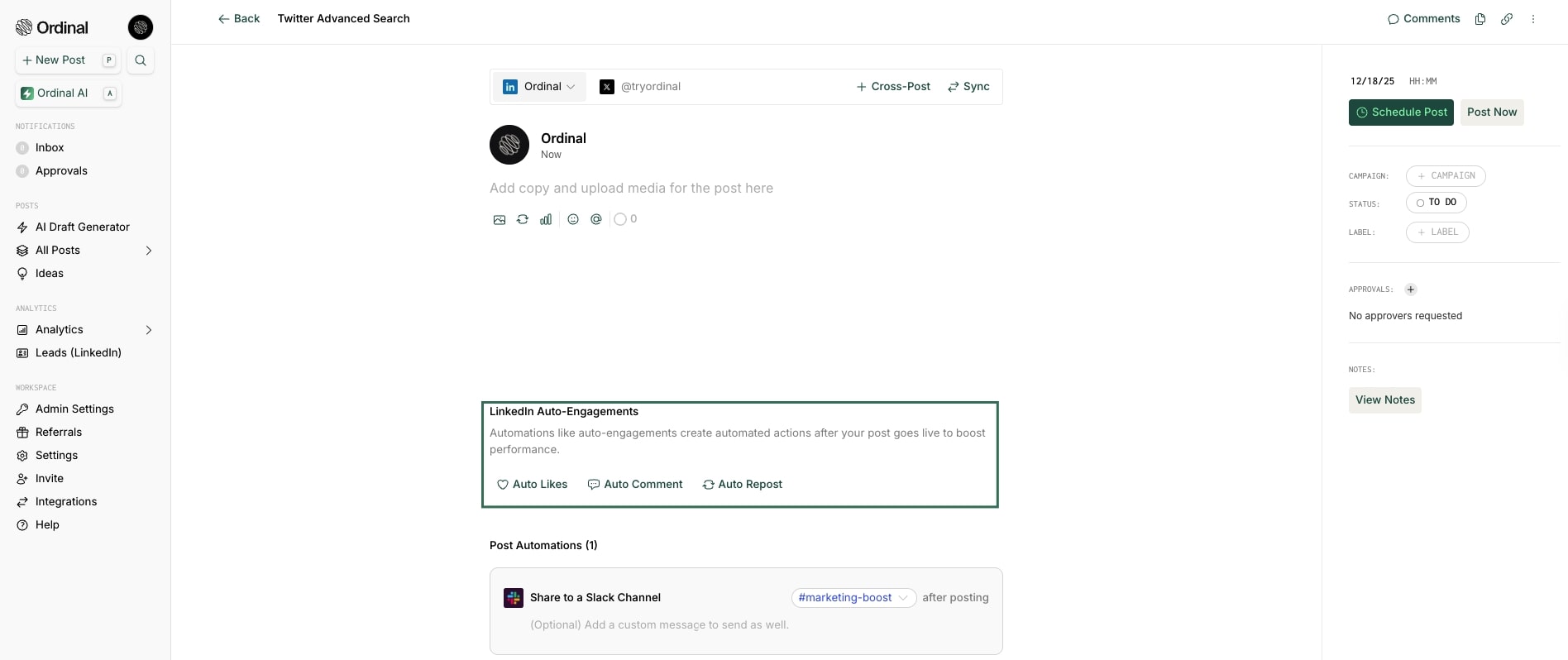
Auto-Engagement Tools: With Ordinal's auto-engagement feature, you can act on your Advanced Search discoveries. When you find potential customers, influencers, or brand mentions through Advanced Search, Ordinal can help you engage with these accounts systematically through features like auto-likes and scheduled comments.
Team Collaboration: With Ordinal’s collaboration features, you can share your Advanced Search findings with your team. Within the platform, they can review search insights, draft responses, and coordinate engagement strategies.
Performance Analytics: While Advanced Search helps you find opportunities, Ordinal's analytics show you which actions drive results. Track how engaging with leads discovered through Advanced Search impacts your overall Twitter performance.
Workflow Integration
Here's how to combine Advanced Search with Ordinal for maximum impact:
- Research Phase: Use Twitter Advanced Search to identify trending topics, potential customers, and competitor insights
- Content Creation: Based on your findings, draft relevant content in Ordinal that addresses audience needs
- Scheduling: Use Ordinal to schedule your content at optimal times
- Engagement: Set up auto-engagement rules in Ordinal to interact with accounts you discovered through Advanced Search
- Analysis: Review performance metrics in Ordinal to refine your strategy
Pro Tip: Save your most valuable Advanced Search queries as bookmarks, then use Ordinal to schedule regular times to review these searches and engage with new results.
Ordinal's LinkedIn and Twitter Integration
One unique advantage of Ordinal is its strong integration with both LinkedIn and Twitter. Since many B2B conversations happen across both platforms, you can use Advanced Search findings from Twitter to inform your LinkedIn strategy and vice versa, all managed through Ordinal's unified interface.
Conclusion
Twitter Advanced Search is more than just a search tool - it’s a strategic asset for marketers only if you know how to wield it effectively. Once you master the filters, operators, and techniques in this guide, you can:
- Discover qualified leads actively seeking solutions
- Monitor brand sentiment and respond proactively
- Track competitors and identify market opportunities
- Find influencers and collaboration partners
- Research content ideas that resonate with your audience
- Provide exceptional customer service
The key is consistency. Make Advanced Search part of your daily workflow with Ordinal. Save your most valuable searches, set up regular times to review results, and act on the insights you discover.
Related Posts
Looking to learn more? The below posts may be helpful for you to learn more about social media and content marketing.